
The fastest way to keep a photo library organized is to use one simple folder structure, rename files so you can recognise them, delete duplicates and keep at least two backups. You do not need special software or a perfect system. You need a few habits that you actually keep. This guide shows how to set up each one, step by step, so your photo library stays easy to search as it grows.
- Use year, then month or event folders, and stick with them.
- Name files by date and subject, using a batch rename tool for old files.
- Clean out duplicates, blurry shots and accidental screenshots every few months.
- Keep your photo library in at least two places, one of them away from your main device.
- Add a few consistent tags to find pictures that folders cannot.
Start With a Simple Folder Structure
A photo library gets out of control when every picture lands in one giant folder or in whatever default location a phone, camera or app picked. A clear structure fixes most of that. The best structure is the one you will still use in two years, so keep it plain.
Folders by date and event
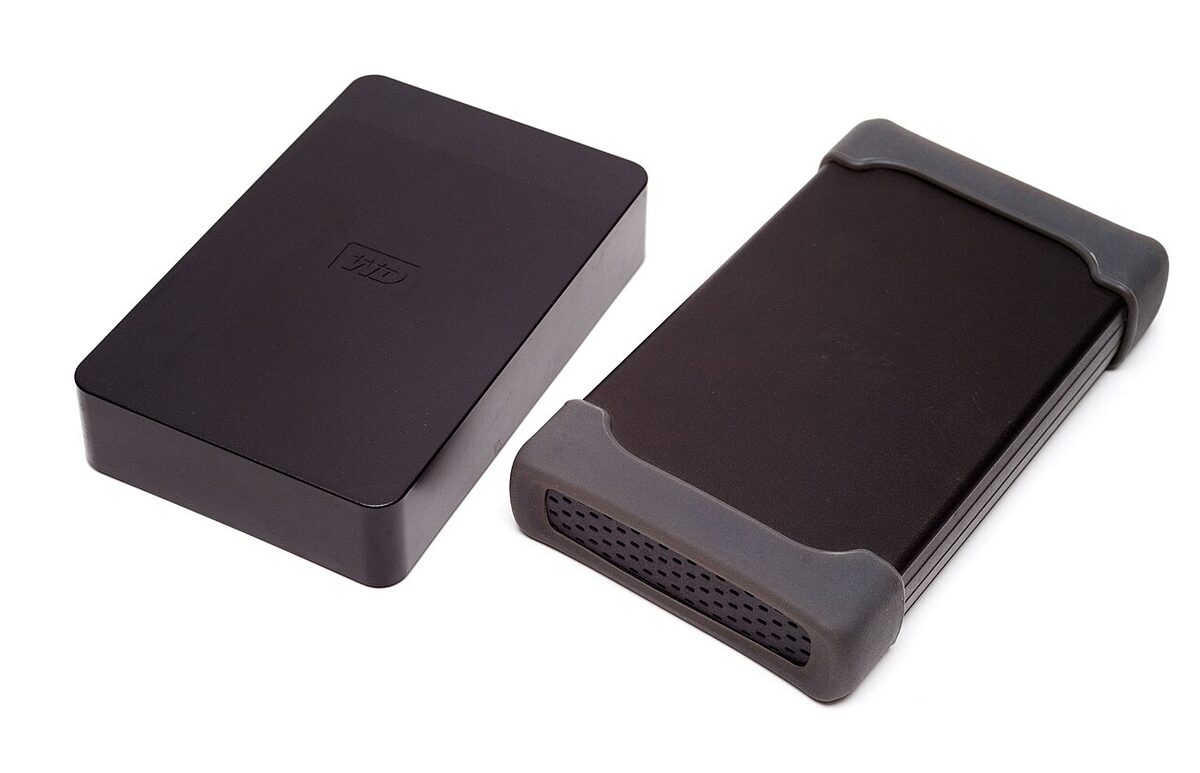
A practical pattern is a main folder called Photos, then a folder for each year, then a folder for each month or event. A path such as Photos/2026/10-Family-Trip tells you what is inside without opening it. If you shoot for work, you might use client or project names instead.
Pick one system and stay with it
Someone who often looks back at holidays may prefer to sort by place. A photographer working with clients may prefer project folders. Both are fine. What matters is that every new photo goes into the same kind of folder every time.
Give Your Files Useful Names
Names such as IMG_4832 or DSC00941 say nothing about the picture. A short descriptive name makes a file easy to find through search, even when it sits in the wrong folder.
A naming pattern that works
Start with the date in year-month-day order, then add a few words about the subject: 2026-10-12-lake-sunrise.jpg. Dates written this way sort in the right order in almost every file manager. Use hyphens between words and avoid long sentences.
Rename in batches
You do not need to rename thousands of files by hand. Most computers and photo applications can rename many files at once from a pattern. Start with the photos you use most, then apply the same pattern to every new import.
Remove Duplicates and Unwanted Photos
Large collections quietly collect duplicates, burst shots, screenshots and pictures you will never look at again. They waste storage and make it harder to find the picture you want.
A quick review routine
- Pick one folder at a time, such as one month.
- Delete blurry, accidental and near-identical shots, keeping the best one.
- Move receipts, documents and screenshots out to their own folder.
- Use a duplicate finder for exact copies created when moving files between devices.
Check any duplicate tool’s results before deleting, and keep a backup before you start your first large clean-up.
Back Up Your Photo Library
An organized library is only useful if it survives a failed drive, a lost phone or a deleted account. A backup is a separate copy, not just a synced one, because a deletion can sync across devices.
The two-places rule
Keep your working library on your computer, make a copy on an external drive and, if you can, add a copy in a trusted cloud service. At least one copy should be stored somewhere other than your main device. Library of Congress guidance on personal digital archiving recommends the same basic ideas: choose what matters, keep copies in more than one place and check them from time to time.
Test your backup
Once in a while, open a few files from the backup to make sure they work. A backup that was never tested may fail when you need it. Protect cloud accounts with strong, unique passwords and extra sign-in checks.
Use Tags and Ratings for Faster Searching
Folders can only place each picture in one location, but you may want to find it in several ways. Tags and ratings solve this. A photo management app can let you tag pictures with words such as birthday, landscape or product launch, and rate your favourites.
Keep a short list of tags and reuse them. If you handle images for a business, tags for client, campaign and usage permission help you find the right picture quickly. The same thinking helps with images used in marketing, which is covered in our article on lifestyle images and their impact on sales.
Importing From Your Camera and Phone
A good habit is to organize while importing. Copy pictures from the camera card or phone straight into the right year and event folder, rename them with your pattern and only then clear the card. This avoids a backlog of unsorted files.
If you share family photos on calls or chats, our piece on the benefits of video chat may also interest you, since sharing photos is part of staying connected.
FAQ: Organizing a Digital Photo Library
How often should I organize my photos?
A short session once a month or after every big event works better than a huge clean-up once a year. Importing and renaming right away keeps the backlog small.
Should I sort by date or by event?
Both can work together. Use year folders at the top level, then name subfolders after an event or month. Choose the structure that matches how you usually search.
Is cloud storage enough as a backup?
It helps, but a synced copy can be deleted along with the original. Keep another copy on an external drive or a second service.
What file format should I keep?
Keep the original files from your camera or phone and avoid overwriting them when editing. Save edited versions as separate files with a clear name.
How do I find duplicate photos?
Many photo managers and file tools can detect exact duplicates. Review what they flag before deleting, and make a backup first.
Conclusion
Organizing a photo library comes down to a clear folder structure, readable file names, regular clean-up, tags and reliable backups. Begin with this month’s pictures and build the habit from there, and your older photos will be easy to bring into the same system later.